Added API and MCP access
Connect an AI assistant to ExpiredLocal to search domains, compare candidates for a PBN, and research names you’ve already revealed. The public API is available for your own scripts too.
We’ve added MCP so you can bring ExpiredLocal into a conversation with a compatible AI assistant. The assistant can call our domain research tools, get results from the catalogue, and help you work through them. You can give it the niche, location and criteria you’re looking for, then refine the search as you see what’s available.
What the assistant can access
The connection includes searches for expired domains, active auctions and pending-delete domains. Those searches cover business categories, location, extensions, reviews, SEO metrics and social information. The assistant can also check which business categories and extensions are available in an inventory before narrowing the search.
It can read your revealed collection and open the details of domains your account can access. That gives it the business profile, location, available metrics and social profiles to work with when you ask it to compare candidates.
MCP is the connection between the assistant and those tools. Your assistant needs to support remote MCP connections; the client examples and full tool reference are in the docs.
Finding domains for a PBN
If you’re building a PBN around a niche, you can give the assistant a sourcing brief. It can look for domains associated with businesses in that industry, narrow the country and extension, and compare the review counts and SEO metrics in the results.
For a home-services project, for example, you might want businesses connected to plumbing or roofing in the UK. The assistant can check the available categories, search them, and organise a shortlist around the criteria you gave it. You can then ask it to broaden the categories or change a metric range if there aren’t enough suitable candidates.
This helps with the domain sourcing and research part of building a PBN. You can take the shortlist into your buying and site-building process once you’ve reviewed it.
I’m researching domains for a home-services PBN in the UK. Look for expired .co.uk and .com domains associated with plumbers or roofing contractors, with at least 10 Google reviews and 20 referring domains. Give me up to 10 candidates and compare the available business and SEO data. Don’t reveal any domains yet.
Comparing a shortlist
Once you have a few candidates, you can ask the assistant to lay out the differences. Review counts, business type, location, domain rating, referring domains and social activity each give you something to investigate. A comparison can make it easier to see which names need a closer look.
The results depend on the information available for each domain. It’s useful to have the assistant flag missing data and explain its reasoning, so you can check the shortlist yourself. A domain’s recorded business history gives you research context; you still need to judge whether the name fits the sites you plan to build.
Compare these candidates by business type, location, reviews, domain rating and referring domains. Point out missing data and explain which ones you would investigate first. Show me the comparison before revealing anything.
Researching a local market
You can use the same connection for a local project. A brief can combine a city, a business category and the signals you care about, then focus on the domains returned for that market.
For example, a restaurant search around Austin can be narrowed by review count and referring domains. The assistant can help compare the available results and investigate accessible business profiles. You can keep discussing that specific market as you refine the search.
Find expired domains associated with restaurants in Austin. Compare the available review counts and referring domains, and give me a shortlist to review. Keep the search read-only.
Reviewing domains you’ve already revealed
The assistant can work with your existing revealed collection too. You can ask it to look for names in a category or country, retrieve their details, and group them for a project you’re planning.
This is useful when you’ve already done some sourcing and want to review what’s in your account before looking for more domains. Reading the revealed collection doesn’t reveal new names or charge new reveal credits.
Look through my revealed domains for businesses related to home services. Group the matches by business type and country, and compare the information available for each name.
Account access and reveal credits
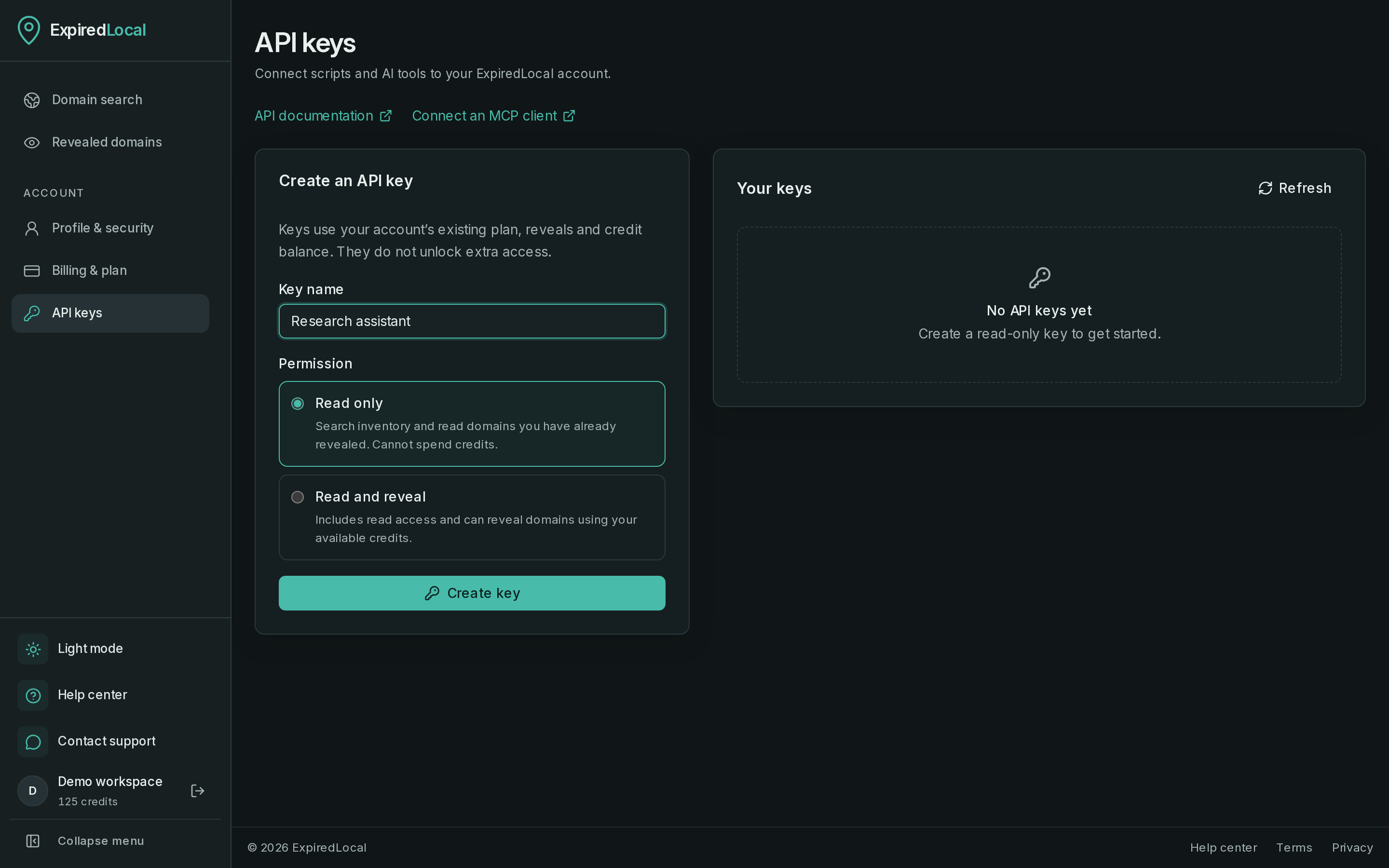
A read-only key lets the assistant search and read information your account can access. It can’t spend credits. A key with reveal permission can also reveal eligible domains using your available balance.
Fully expired names that haven’t been revealed can remain masked in search results. Revealing a candidate gives your account access to its name and details. Auction and pending-delete access follows your plan, just as it does in the workspace.
The reveal tool reports what was revealed, any credits charged and the remaining balance. You can keep a connection read-only while researching, or review the proposed shortlist before allowing reveals. Buying or registering the domain takes place through your registrar or marketplace.
Where the docs are
The MCP guide has the connection details, client configuration examples and the reference for every available tool. It also covers checking the connection, permissions and common connection problems. It’s the place to start when you want to connect an assistant.
If you’re building a script or integrating ExpiredLocal into another tool yourself, the API reference covers the public endpoints, filters and responses. Both connections use an API key from your ExpiredLocal account.